Skip to try-on tools
Your photo fitting studio
PricingYearly ~20% offLoading…

Hair Color Try Onwith Your Own Photo

Hair color try on begins with the same you and a different shade. Compare color ideas without mistaking an image for a dye prediction.

Preview a Different Hair Color

Start with a portrait, then select a shade to explore.

JPG, PNG or WebP · 10 MB per image · 20 MB total · up to 40 megapixels for local preview.
Explore a shade

Choose a color family as a reference; selecting a shade alone does not change your photo.

JPG, PNG or WebP · 10 MB per image · 20 MB total · up to 40 megapixels for local preview.

Explore this look

Output resolution

Unavailable resolutions cannot be selected right now.

Credits for this generation: 1

By clicking Generate preview, you confirm that you have permission to use these images and agree to AI processing for this preview.

Images are uploaded only when you click Generate and processed by AI to create your preview.

Checking service availability…

My generations ↗

Your fitting mirror

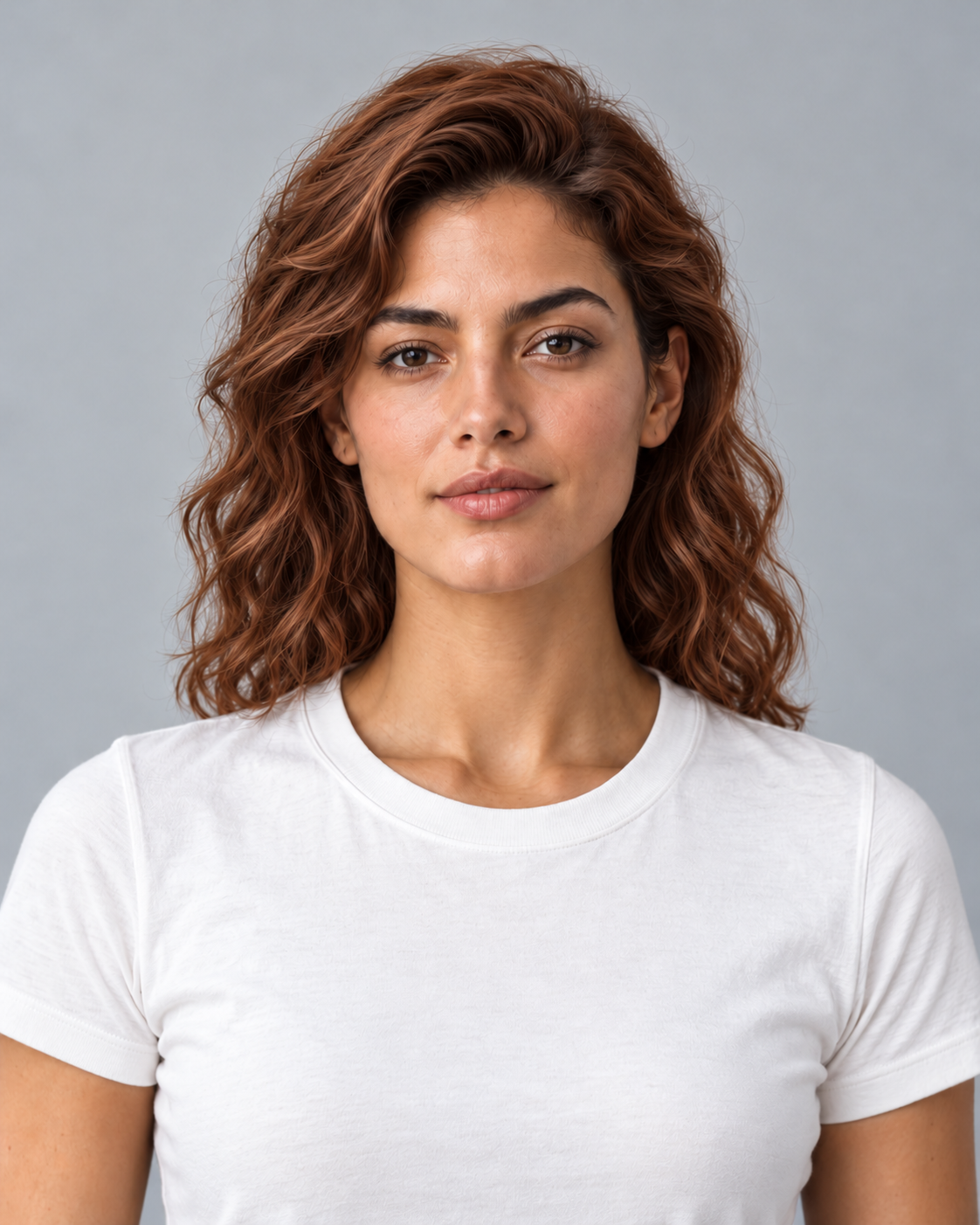
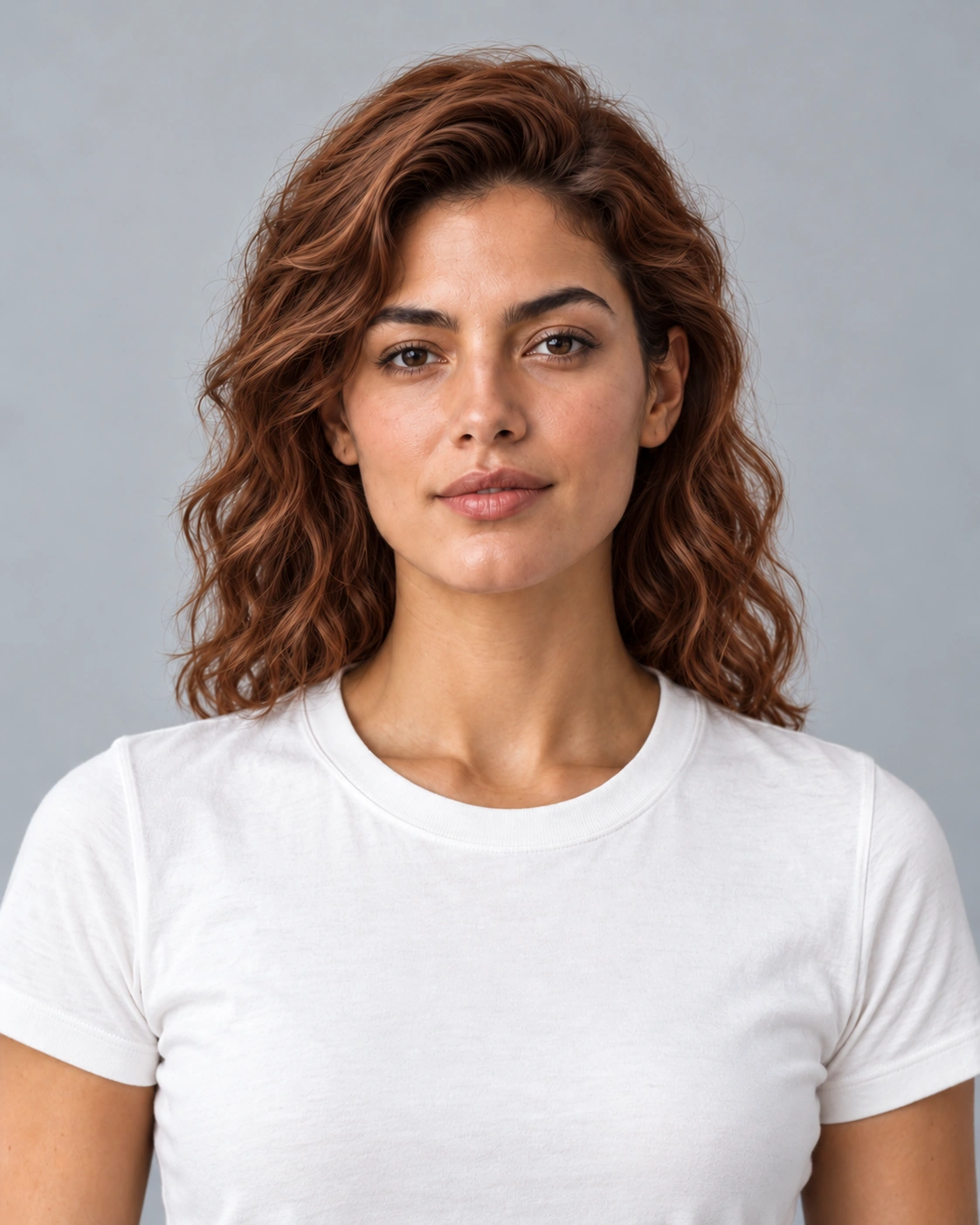
Hair color try on example: copper-auburn hair on the same portrait
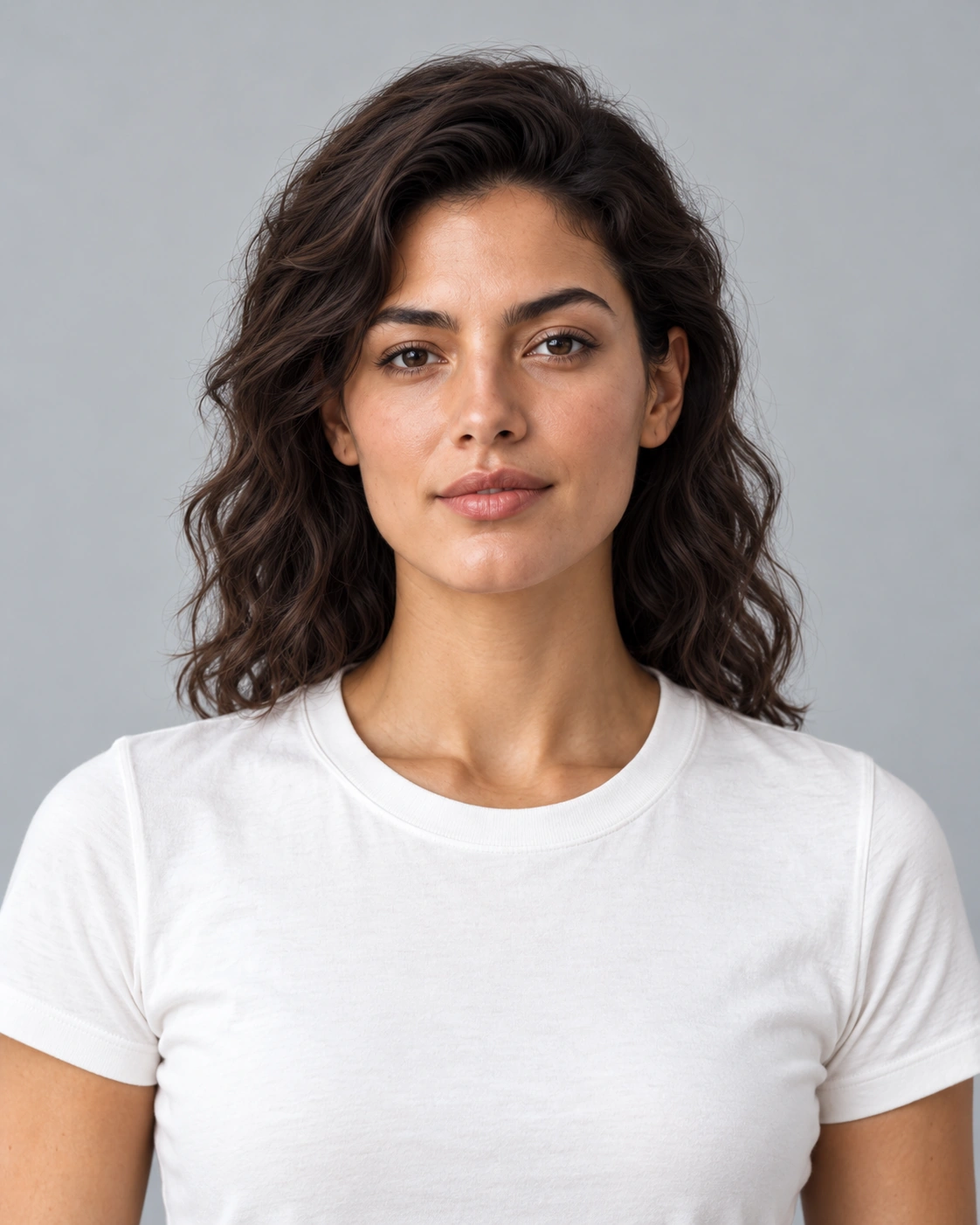
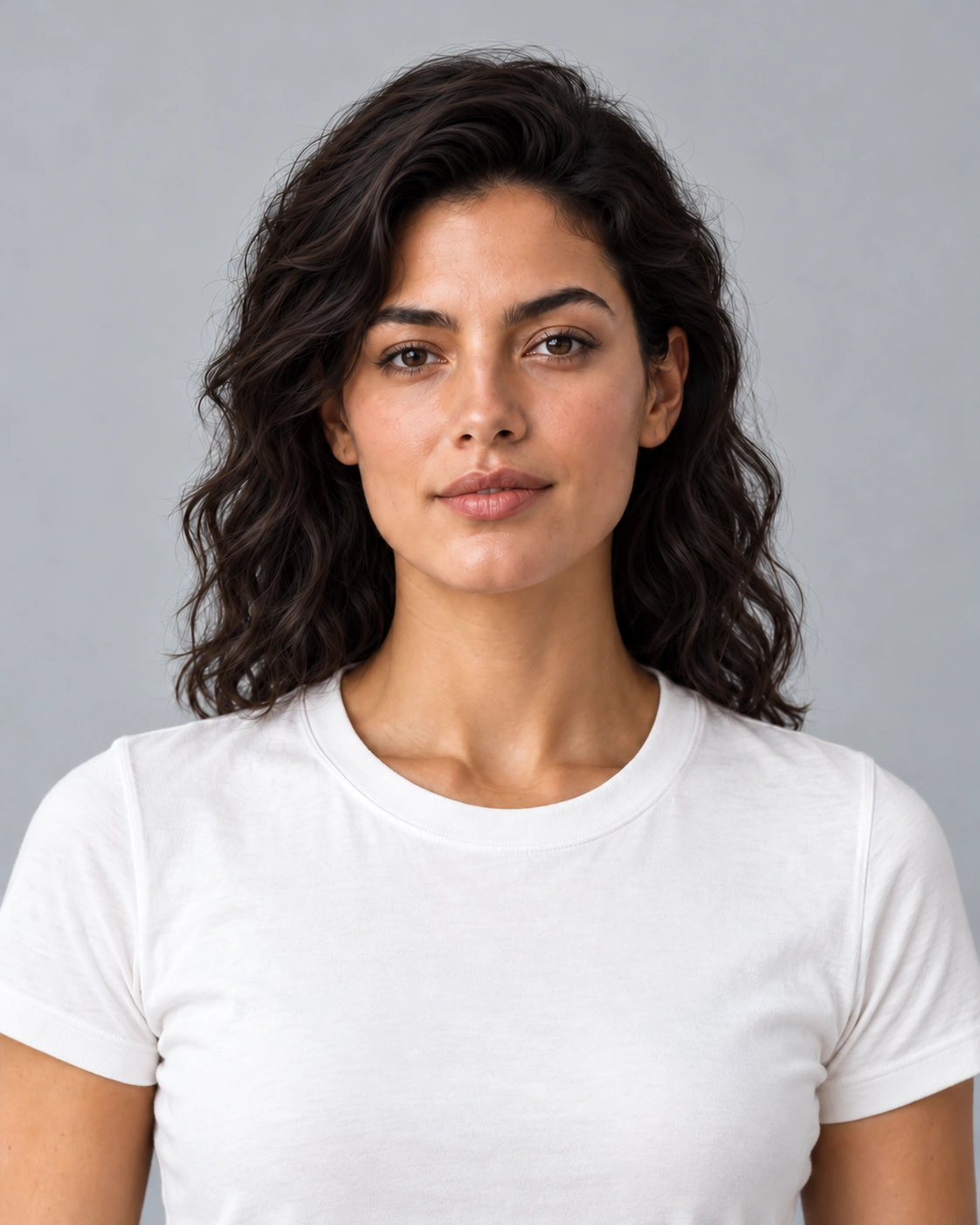
Hair color try on original: brunette portrait before changing the hair color
Original photoPreview

AI-generated example images. Drag or use arrow keys to compare.

Download example image ↓Example image for appearance comparison.

Example preview

Hair color try on example: copper-auburn hair on the same portrait
Hair color try on original: brunette portrait before changing the hair color

AI-generated example images. Drag or use arrow keys to compare.

How to Try On Hair Color

To try hair color online, choose a portrait with visible hair and neutral light. Keep that same image for each hair color try on comparison.

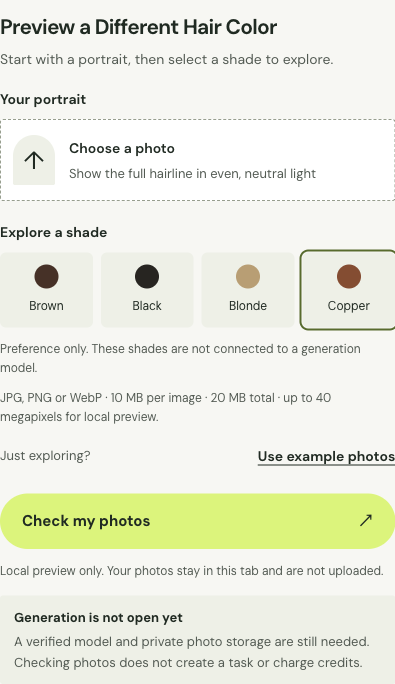
Hair color try on upload interface showing portrait upload and shade options
How to Try On Hair Color: photo selection and reference fields.

Upload a photo with visible hair

Choose a portrait that includes the hairline, the lengths you want to compare and enough surrounding background to see the edges. A tight face crop can leave out the most important area for hair color try on. Use soft daylight and avoid a strong colored lamp. Hats, heavy filters and wet hair can conceal the usual texture or make the starting shade ambiguous. Check the original at full size before choosing a new color, especially where dark hair overlaps a dark top or blends into the background.

Choose a shade to preview

Begin with a broad color family such as brown, black, blonde or copper. For hair color try on, compare depth and warmth separately: a darker shade can change contrast, while a warmer shade can change how the skin beside it appears. Use the color choice as a reference rather than a salon formula. Selecting a shade alone does not recolor the photograph. Keep a written description of the shade you like, including whether it is lighter, darker, cooler or warmer than your starting color.

Compare colors with the same input

Hold the portrait, crop and lighting constant for a useful hair color try on comparison. If those change between images, one shade may appear brighter for reasons unrelated to the color choice. Look at hair edges and facial detail as well as the color itself. Shadows should still describe the strands, and a shade comparison should not quietly turn into a new haircut. View the images at the same zoom and screen brightness. Keep the unedited portrait beside the comparison so you can spot changes beyond the hair.
Hair Color Preview Examples

Compare dark, light and warm shade families with these hair color try on examples. Check the roots, strand detail and color beside the face.

Hair color try on original: brunette portrait before changing the hair colorOriginal image
Hair color try on example: near-black hair retaining the original wavy texturePreview
Near-black depth with visible strand variation.

Brown-to-black depth

The darker hair color try on example keeps the original waves and uses a soft near-black rather than a featureless solid fill. Inspect whether individual strands remain visible against the shirt and background. Darkening should not erase the hairline or alter the face. This is a broad visual shade family, not a named dye formula, and the comparison does not predict how previously colored hair would respond to a salon treatment.

Hair color try on original: brunette portrait before changing the hair colorOriginal image
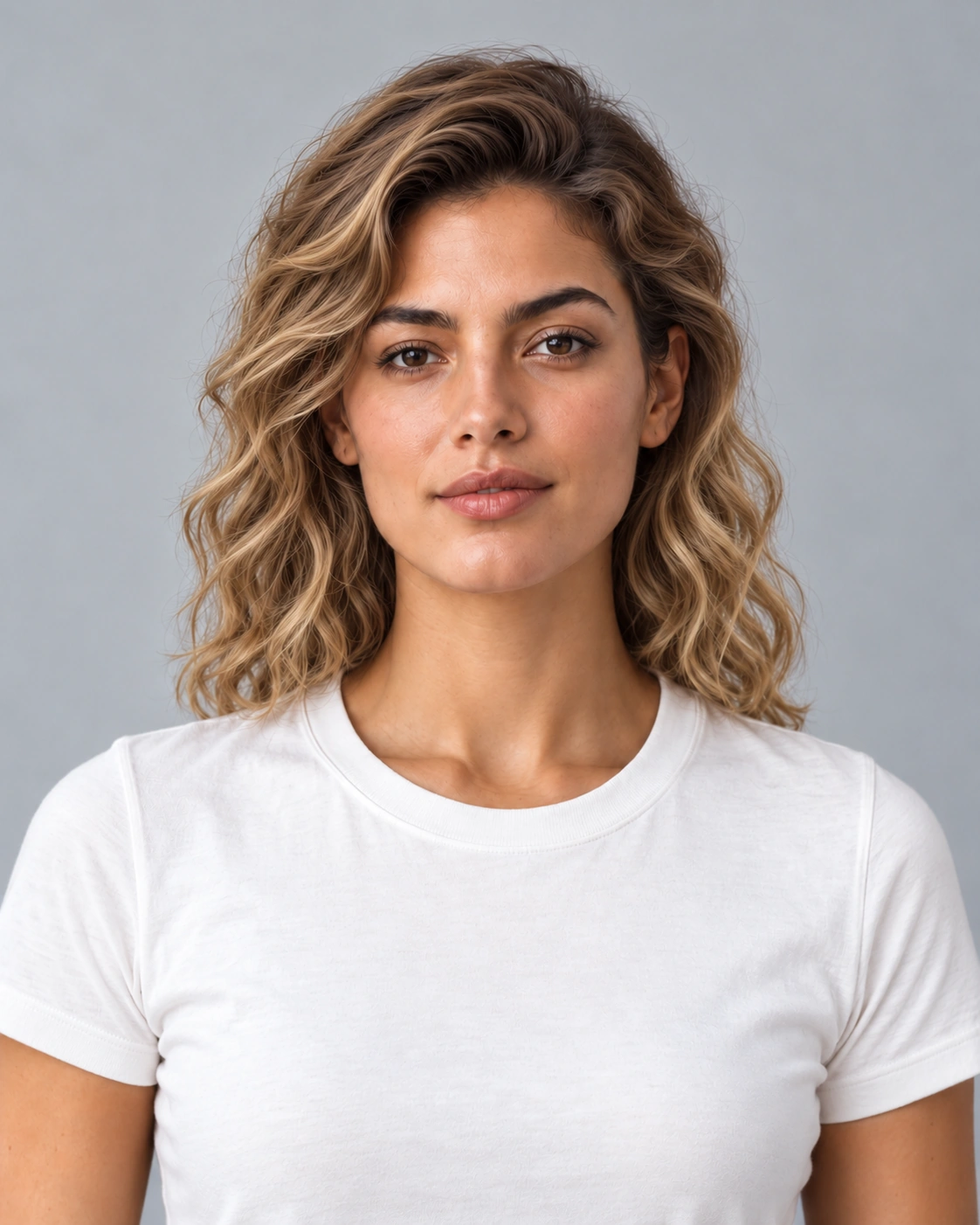
Hair color try on example: honey-blonde hair on the same portraitPreview
Honey-blonde lengths with darker roots.

A lighter honey-blonde direction

The lighter hair color try on example retains darker roots and strand variation, making texture easier to compare with the starting portrait. Look at the lengths, face boundary and shaded side of the hair before deciding whether you like the lighter appearance. A digital change can suggest a conversation with a stylist, but it cannot tell you whether bleaching is appropriate or how many sessions a particular starting color needs.

Hair color try on original: brunette portrait before changing the hair colorOriginal image
Hair color try on example: copper-auburn hair on the same portraitPreview
Copper-auburn warmth beside the face.

A warm copper-auburn direction

The copper hair color try on example is made from the same neutral-light portrait as the other shades. That gives you a useful baseline for judging the warmth without changing the skin or room light. Compare the face beside the original: a hair edit should not simply add orange across the whole image. Copper is shown as a visual family, with no promise of an exact swatch, dye number or real-world salon result.

What Changes the Color You See?

Lighting, shadows and screen color

Camera white balance, exposure and the light in a room can all shift a recorded shade. A warm lamp may add orange to hair, while a cool shadow can make it look duller. Your display adds another variable through brightness and color settings. For hair color try on, inspect the starting photo before judging a new shade: if skin and white clothing already look tinted, the hair reference may be tinted too. A digital preview cannot standardize all those conditions or promise that the color will look identical on another screen or in daylight.

Original hair color and texture

Straight, wavy, curly and coily hair reflect light differently. Texture can make one hair color try on shade appear varied across the lengths even when the overall color family is consistent. Dark roots, previous dye and porous ends also matter when discussing a real treatment. Keep those features visible in the original rather than smoothing them away with a filter. A photograph cannot reveal the full condition or treatment history of your hair. Take the color reference and that history to a stylist before deciding on a chemical process.

AI preview versus real hair dye

Hair color try on helps you describe a visual preference; it cannot predict a chemical result. Starting pigment, previous treatments, hair condition and the chosen dye all influence the final shade. An image cannot determine the required degree of lift or how a color will fade after washing. Bring the original portrait and preferred shade to a stylist, and ask which parts are realistic for your hair. Treat the image as a reference for that conversation rather than a numbered formula, a bleaching recommendation or a promise of identical salon color.

Photograph Hair in Neutral Light

Photograph the same hair near a window without direct sun, and avoid mixing daylight with a colored lamp. Include a neutral part of the room to help you notice color casts. These are preparation tips, not a measured comparison of two lighting conditions.

Color Change or Hairstyle Change?

Keep the task focused

Use hair color try on for a shade question and the hairstyle guide for a shape question. A hair colour try on comparison is easiest to read when length, parting and outline stay consistent. Changing the cut and color together can hide which difference you prefer. Compare the face and hairline with the original, then focus on the shade. Follow the related hairstyle page when the decision concerns layers, a shorter perimeter or bangs, and keep separate references for each change you want to discuss.

Save your color references

Keep the original portrait and your preferred hair color try on direction together. Note the lighting used, the color family and the feature you liked, such as darker roots or a softer copper tone. These details are more useful than an isolated finished image when you revisit the idea or speak with a stylist. Photo and shade selections stay in the current workspace during preparation; retain your own files before leaving the page. Review pricing and the selected tool’s status before committing to a paid request.

Frequently asked questions

Can hair color try on compare several shades on one photo?

Use the same portrait and crop when comparing shades. The hair color try on examples show how dark, blonde and copper families raise different questions about depth and warmth. Keep the original visible so changes to skin, hairline or texture are easier to notice.

Will hair color try on preserve my current hairstyle?

A color comparison should keep the cut and outline consistent, but an AI image can also alter strands, the hairline or facial details. Compare those areas with the original rather than assuming they stayed unchanged.

Can I preview highlights or partial coloring?

This page provides broad shade choices, without a highlight-placement or masking control. For partial coloring, keep a clear reference and discuss the placement and realistic result with a stylist.

Will hair color try on match real dye?

No such guarantee is possible from this photo workflow. Starting pigment, treatment history, hair condition and dye chemistry all matter; consult a stylist for a realistic plan.