Skip to try-on tools
Your photo fitting studio
PricingYearly ~20% offLoading…

Virtual Glasses Try Onwith Your Photo

Virtual glasses try on begins with a clear portrait and a frame reference. Compare the shape and appearance, with a clear view of the limits.

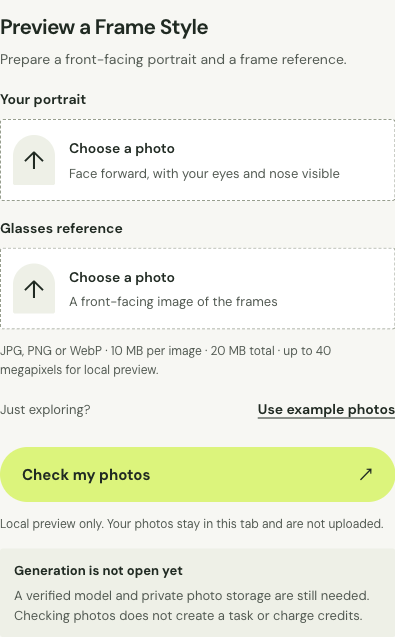
Preview a Frame Style

Prepare a front-facing portrait and a frame reference.

JPG, PNG or WebP · 10 MB per image · 20 MB total · up to 40 megapixels for local preview.

JPG, PNG or WebP · 10 MB per image · 20 MB total · up to 40 megapixels for local preview.

Explore this look

Output resolution

Unavailable resolutions cannot be selected right now.

Credits for this generation: 1

By clicking Generate preview, you confirm that you have permission to use these images and agree to AI processing for this preview.

Images are uploaded only when you click Generate and processed by AI to create your preview.

Checking service availability…

My generations ↗

Your fitting mirror

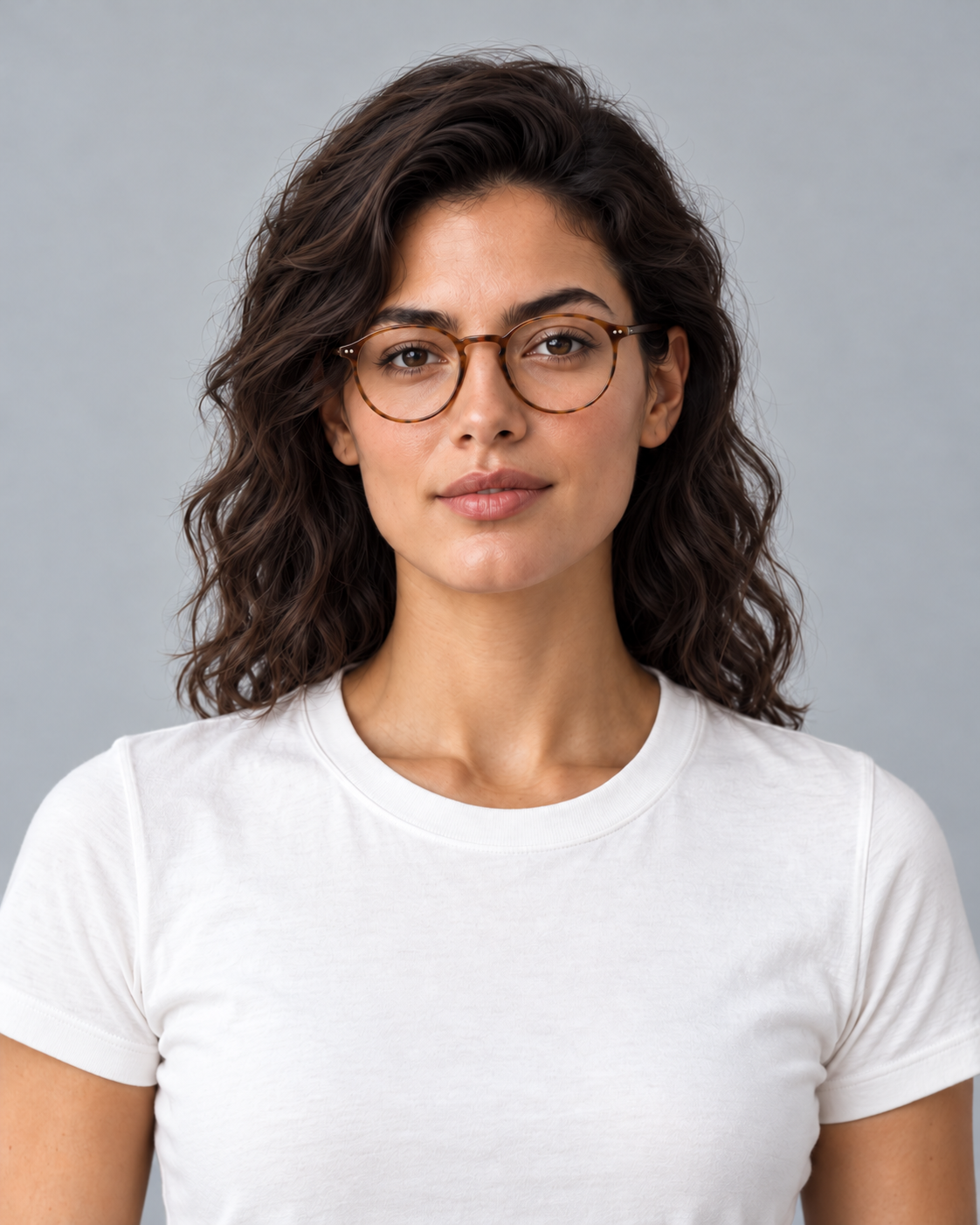
Virtual glasses try on example: round tortoiseshell glasses with clear lenses on a front-facing portrait
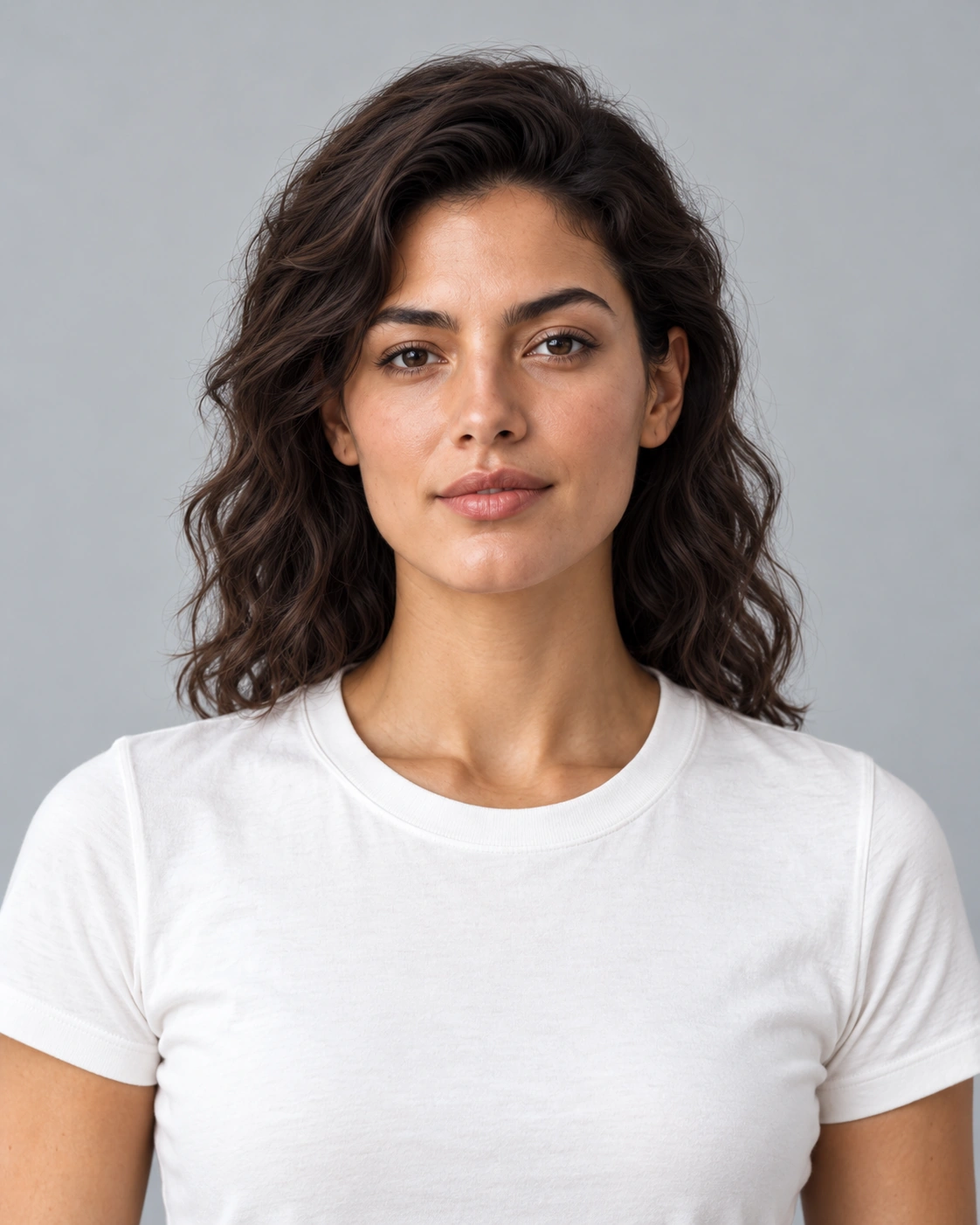
Virtual glasses try on original: front-facing brunette portrait without glasses
Original photoPreview

AI-generated example images. Drag or use arrow keys to compare.

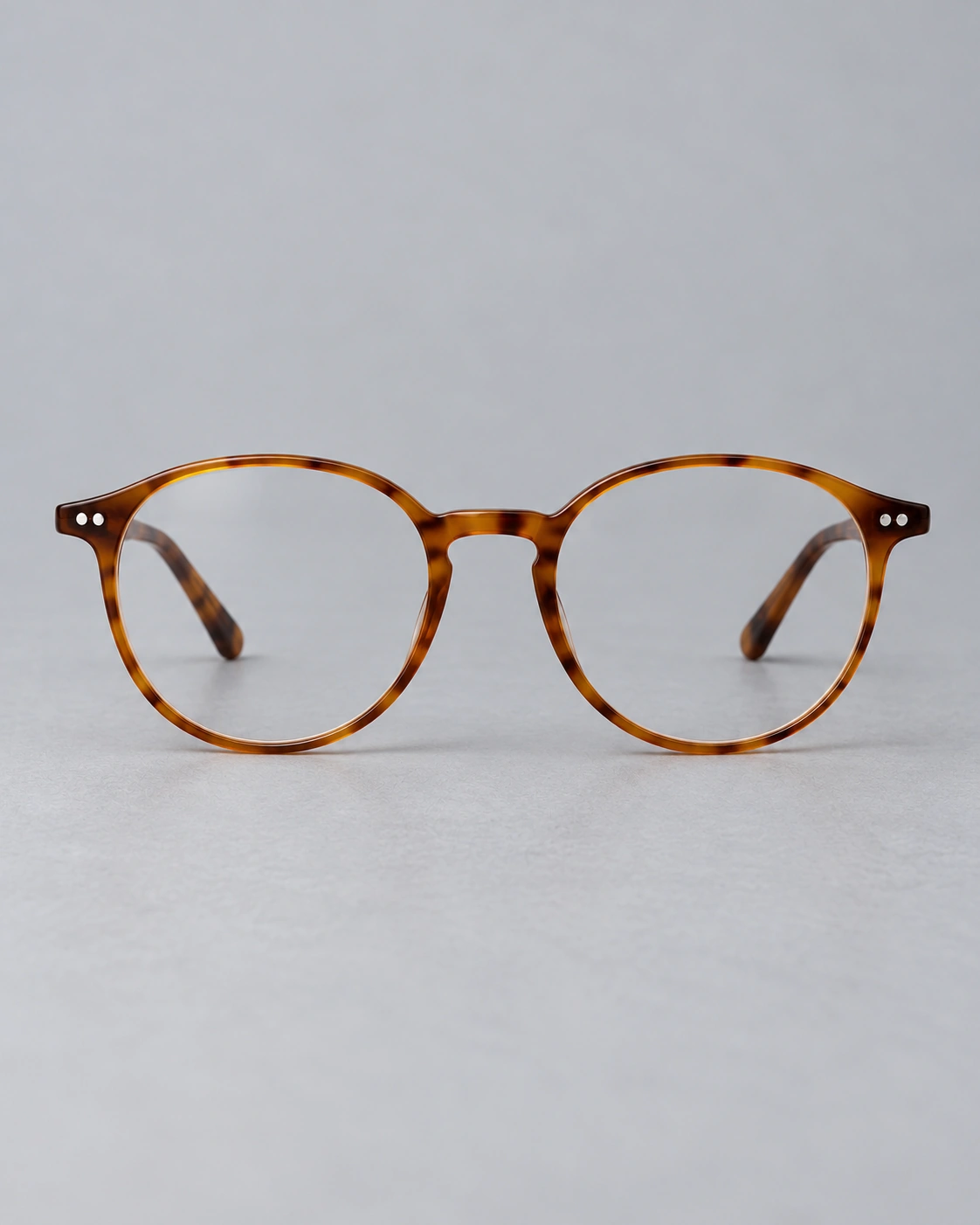
Virtual glasses try on reference: round tortoiseshell optical frame reference with clear lenses
Glasses

Glasses reference

Example preview
Download example image ↓Example image for appearance comparison.

Example preview

Virtual glasses try on example: round tortoiseshell glasses with clear lenses on a front-facing portrait
Virtual glasses try on original: front-facing brunette portrait without glasses

AI-generated example images. Drag or use arrow keys to compare.

How to Try On Glasses Online

To try on glasses online, start with a clear portrait and a front-facing frame reference. Keep the eyes, bridge and frame outline visible for virtual glasses try on.

Virtual glasses try on upload interface showing portrait and frame reference fields
How to Try On Glasses Online: photo selection and reference fields.

Use a clear, front-facing photo

Face the camera with your head level, eyes open and nose bridge visible. Keep the full width of your face in the frame, including the temples where the frame arms would begin. Soft daylight without a strong side shadow helps make the facial outline clear. Remove existing glasses if they cover the area you want to change, and avoid a beauty filter that alters eye spacing. For virtual glasses try on, a neutral portrait is a more useful reference than a tilted selfie, especially when you want to compare frame shapes rather than a dramatic photograph.

Choose a supported frame reference

Choose a front-facing product view with the bridge, rims and both lens openings visible. A diagonal advertising photograph can hide the proportions you want to compare. Keep the reference separate from another person’s face where possible, and avoid cropping the outer frame edges. For virtual glasses try on, note whether the reference has transparent or tinted lenses, a thick or thin rim, and visible nose pads. Use the retailer’s product details to identify the actual design; the visual reference alone does not establish a brand or frame size.

Compare the shape and appearance

Use the same portrait when comparing frames. With virtual glasses try on, inspect the upper rim against the eyebrows, the apparent width across the face and the bridge position. Then compare the temples where they pass beside the hair. Those observations describe appearance, not millimeter measurements. Keep the zoom level consistent and check each side of the face; perspective can make one lens look narrower. Compare a frame’s published dimensions separately before deciding which physical pair to try, especially if your existing glasses already feel too wide or tight.
Glasses and Sunglasses Examples

Compare round frames, rectangular frames, sunglasses and a same-shape color change in these virtual glasses try on examples. Keep the original visible and inspect the details beside each pair.

Virtual glasses try on original: front-facing brunette portrait without glassesOriginal image
Virtual glasses try on example: round tortoiseshell glasses with clear lenses on a front-facing portraitPreview
Round tortoiseshell rims with clear lenses.

Round tortoiseshell frames

The round-frame example uses a front-facing portrait with unobstructed eyes and a visible bridge. With virtual glasses try on, compare the upper rim with the eyebrows and check whether the lenses leave the eyes readable. The warm tortoiseshell color contrasts with the neutral background without changing the portrait lighting. The picture does not identify a brand, prescription or frame size; it is a visual style reference.

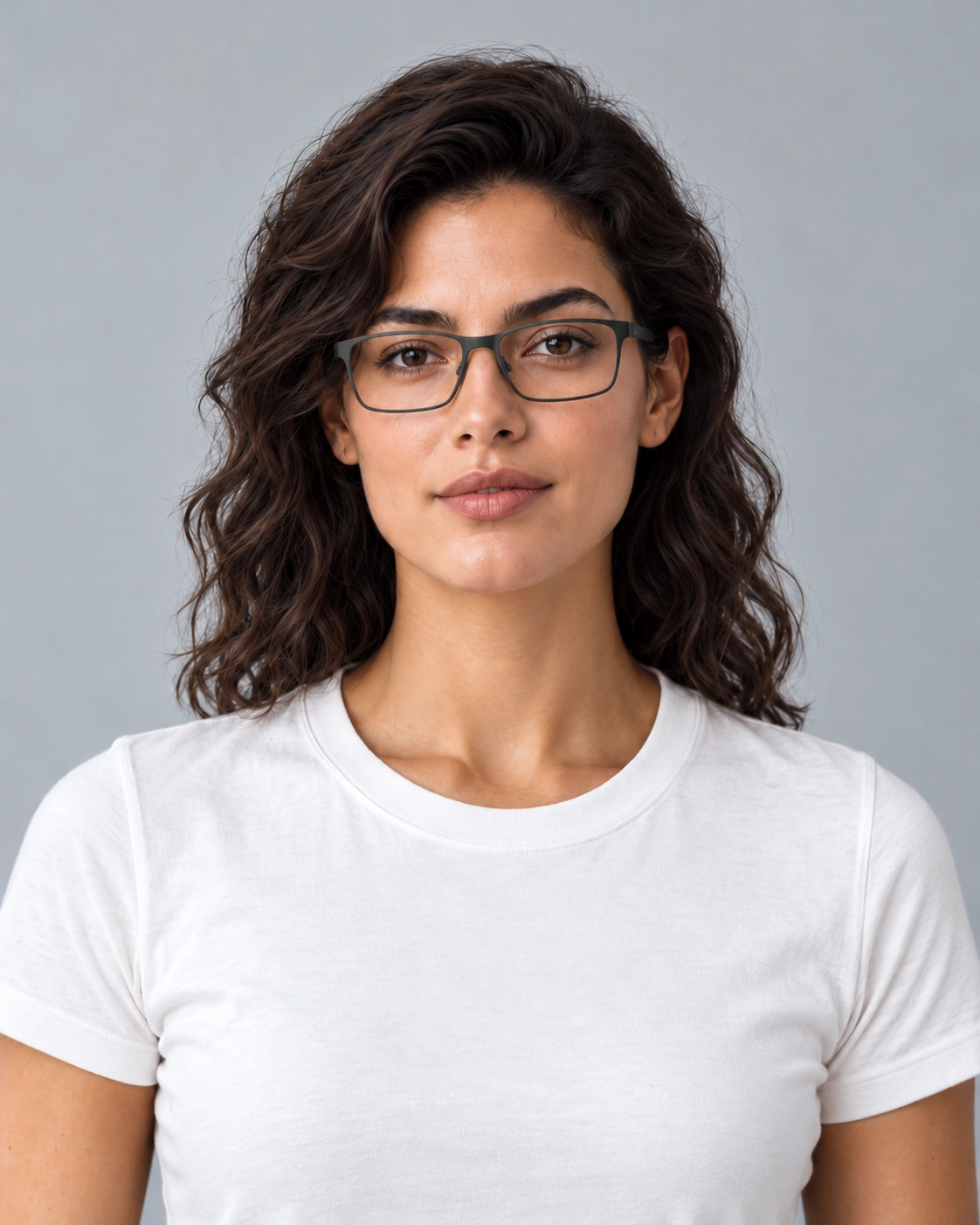
Virtual glasses try on original: front-facing brunette portrait without glassesOriginal image
Virtual glasses try on example: charcoal rectangular frames on the same portraitPreview
A darker, rectangular frame outline.

Rectangular charcoal frames

The rectangular example starts from the same original portrait, making the rim shape the useful difference. For virtual glasses try on, inspect bridge contact, apparent width and where the temples disappear behind the hair. A darker rim looks stronger against the skin than the thinner amber frame. Treat the apparent proportions as an image effect, then check measured frame specifications before considering a physical pair.

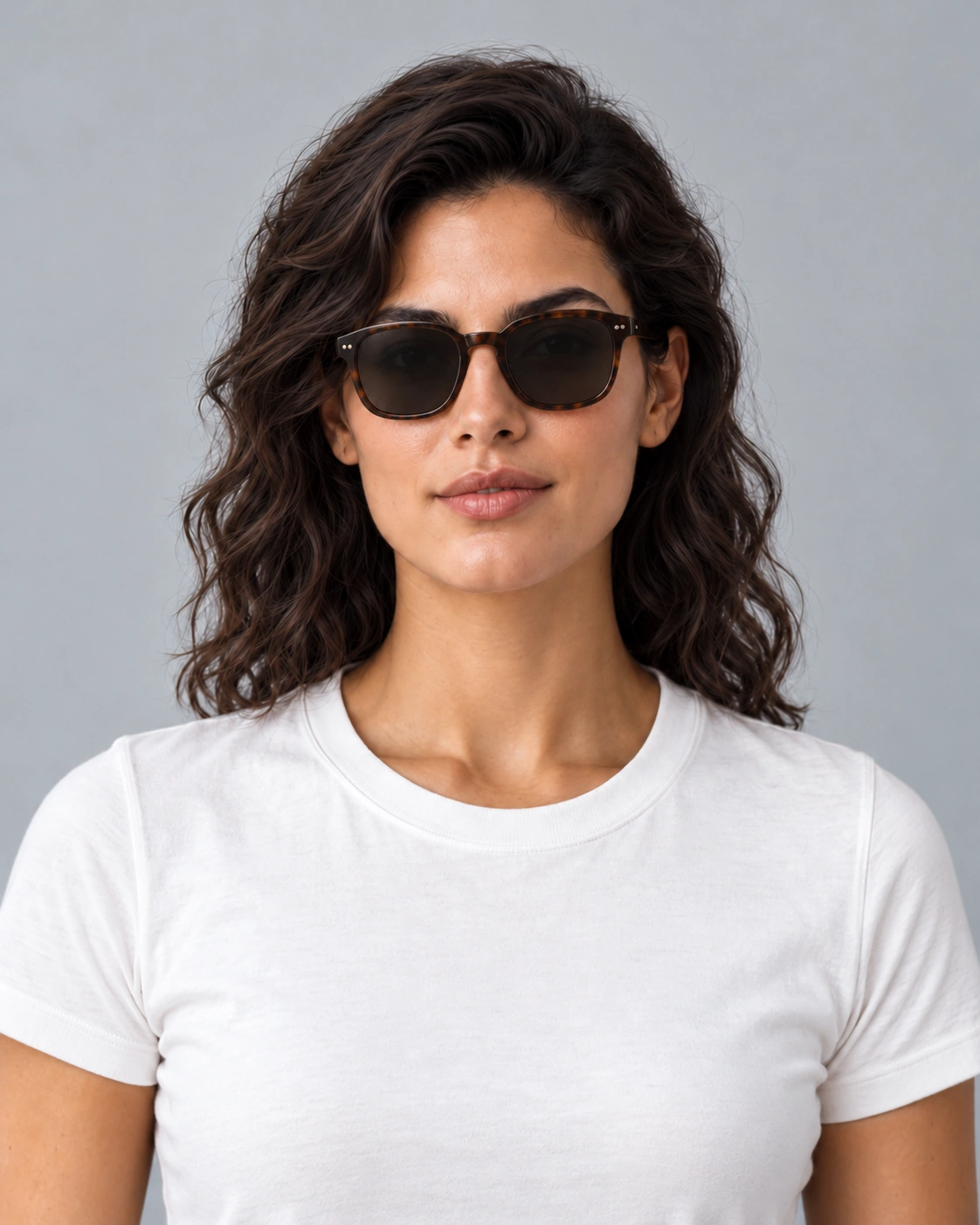
Virtual glasses try on original: front-facing brunette portrait without glassesOriginal image
Virtual glasses try on example: dark-lens sunglasses on the same portraitPreview
Dark lenses and a rounded-square outline.

Dark-lens sunglasses

Sunglasses belong in the virtual glasses try on guide because the task still concerns frame appearance on a face. Here the dark lenses partly obscure the eyes, so compare the bridge and outer outline first. Reflections are deliberately restrained to keep the shape readable. This example says nothing about UV protection, optical quality or suitability for driving; those are properties to verify with the seller.

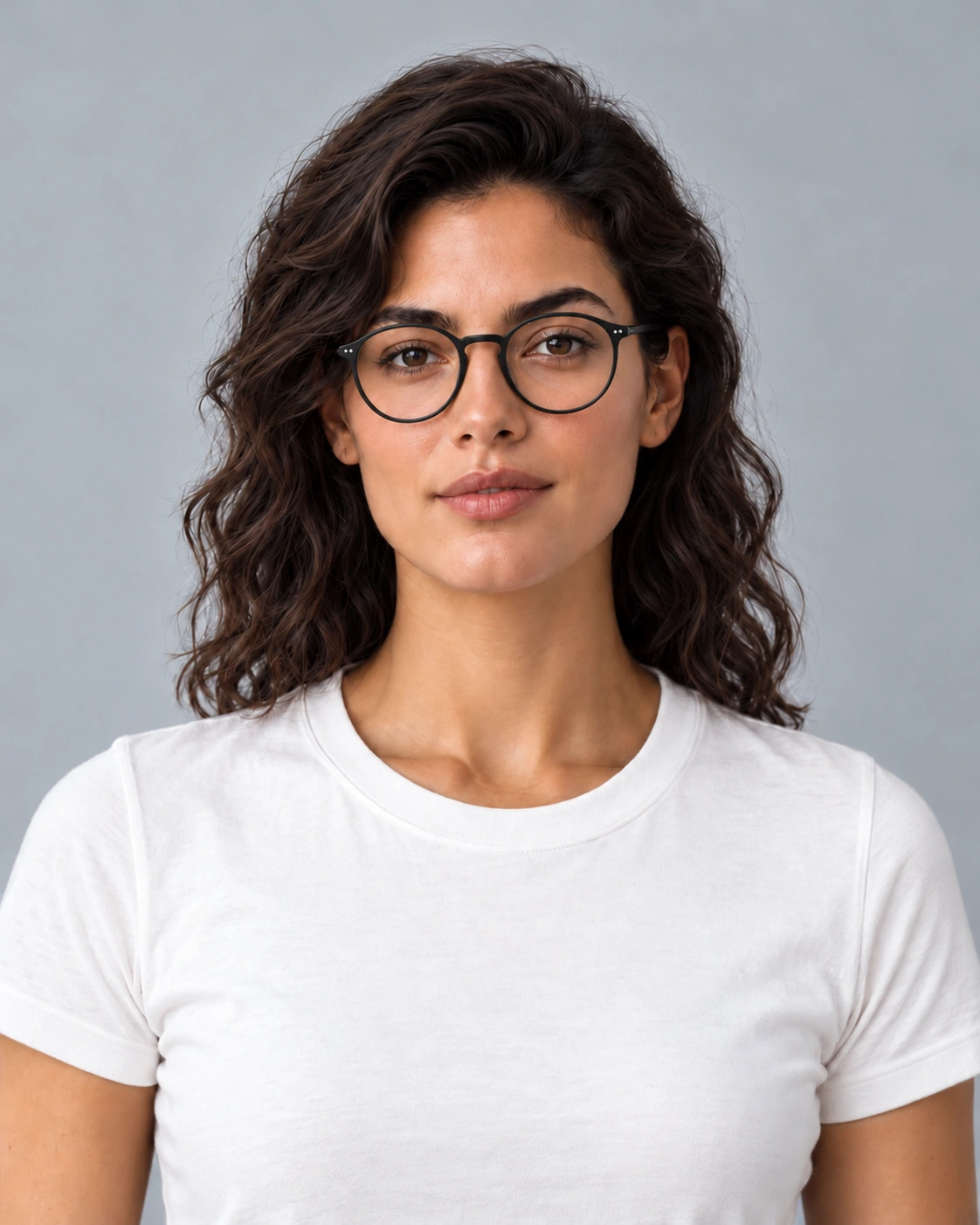
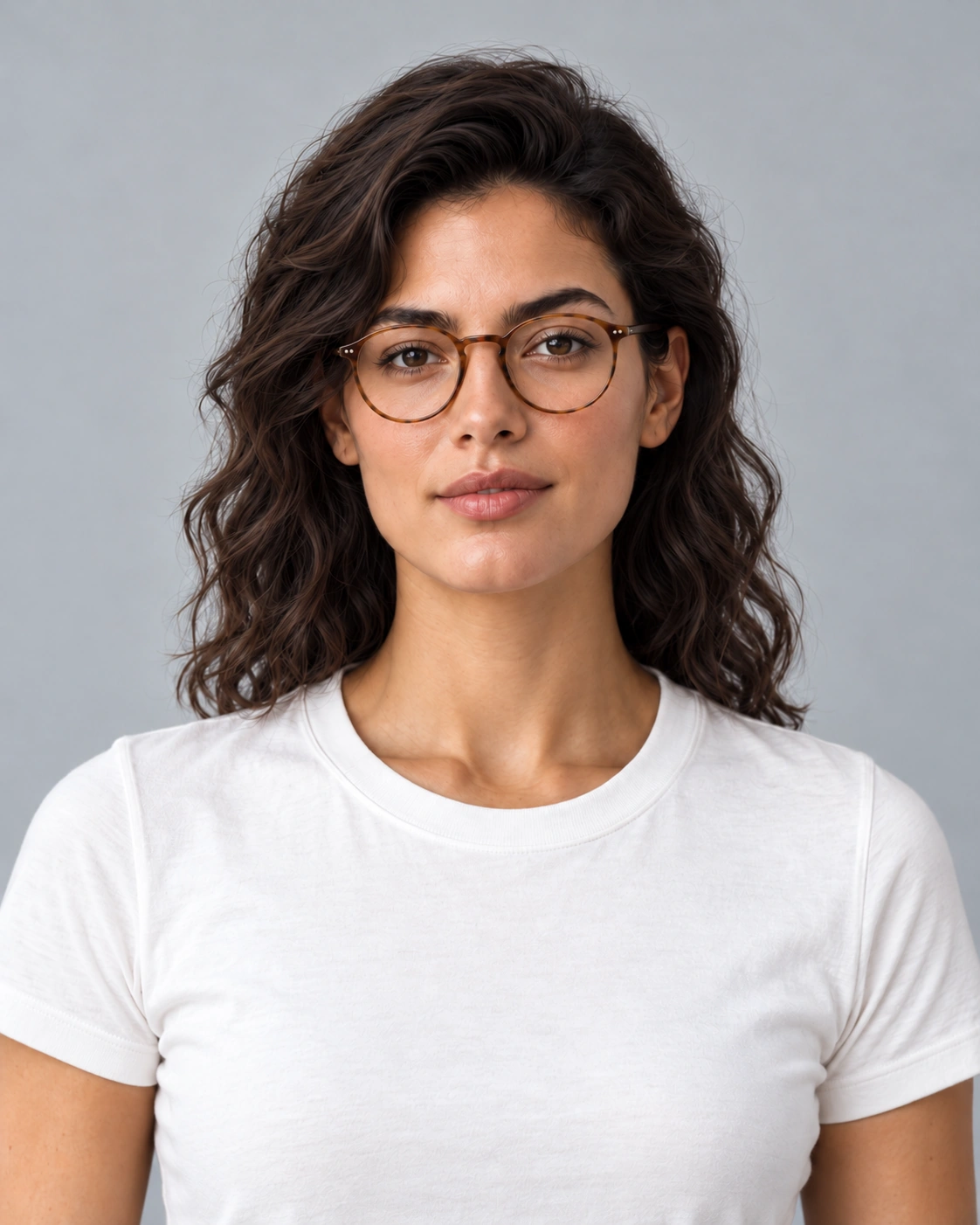
Virtual glasses try on color comparison with warm tortoiseshell round framesWarm tortoiseshell
Warm-colored round rims.
Virtual glasses try on color comparison with charcoal round framesCharcoal
Charcoal rim-color example.

Light and Dark Frame Colors

Keep the portrait, head angle and round-frame outline consistent when comparing frame color. The warm tortoiseshell example is the source for the charcoal edit beside it. Look at contrast against the eyebrows, how strongly the upper rim stands out and the visual weight of the bridge. View both pictures at the same zoom. This virtual glasses try on comparison illustrates a color choice with AI-generated images; small editing differences may remain. Use the actual product’s color and material description when choosing a physical frame.

Understanding the Preview

Virtual glasses try on reference: round tortoiseshell optical frame reference with clear lensesVisual reference
Inspect the frame reference at full size for edges, texture and placement.

Frame position, hair and face angle

A small head turn can make one lens appear narrower, while hair can conceal the point where a temple meets the side of the face. Existing glasses, strong reflections and a hand near the eyes add further ambiguity. For virtual glasses try on, compare the bridge and lens heights against a level, front-facing portrait. If the bridge seems to float or one side sits much higher, reconsider the input before judging the design. A clearer photograph helps separate a frame preference from a perspective or placement problem.

Appearance versus physical frame measurements

Virtual glasses try on cannot determine bridge width, temple length, lens width, frame pressure or pupillary distance from an uncalibrated portrait. A result that seems balanced on screen may still be unsuitable for your prescription or uncomfortable on your nose. Check the product's measured specifications and consult an optician about prescription needs and fitting. This studio does not request a prescription, measure eyes or provide medical recommendations. Treat an image comparison as a way to organize style preferences before a real fitting rather than as a replacement for one.

Keep your portrait and references organized

Keep an unedited portrait as the starting point for every virtual glasses try on comparison. Name your frame references by shape or product model so you can return to the right design. Use images you have permission to process, and avoid including private information in the background. Photo selection stays in the current tab; removing a file or leaving the page clears that selection. Review the privacy policy before sharing personal images, and check pricing and tool status before committing to a paid request.

Frequently asked questions

Is virtual glasses try on a live camera or a photo preview?

This is a photo-based workflow. Use a clear portrait to compare frame appearance; there is no live webcam fitting or head tracking. Virtual glasses try on does not measure optical fit.

Can I try my own frame image?

You can select a frame reference alongside your portrait. Choose a clear front view and compare small design details carefully; an AI image can redraw parts of a frame.

Can I preview sunglasses?

Use the sunglasses examples to compare outline, rim color and how dark lenses change the look of the face. Lens appearance does not establish UV protection, prescription suitability or optical quality.

Does the preview measure fit or pupillary distance?

No. An uncalibrated photo is not a measurement tool. Use actual frame specifications and professional fitting for those decisions.

Why can frames look too wide in a preview?

Camera perspective, face angle and model reshaping can all change apparent width. Compare with the original reference and a front-facing portrait; an image is not evidence of actual frame dimensions.

How are my face photos handled?

Selected portraits stay in the current tab during photo preparation. Remove the photo or leave the page to clear the selection. Read the privacy policy before sharing personal images. Images are uploaded only when you click Generate and processed by AI to create your preview. Delete a finished task in My generations to remove its images.

Is a free preview available?

Viewing the guide and checking selected photos do not use credits. Review the pricing page and any cost shown for the selected tool before submitting a paid request.